Spring Boot3.X系 でAzure FunctionsのQueue Storage Triggerを実装する手順を示す。
プロジェクトの作成は以下の記事参照。
SpringBoot2.X系の実装方法は以下の記事参照。
Functionクラスの作成
Functionクラスには、ファンクションごとに行いたい処理を記述する。
FunctionクラスはHandlerクラスで呼び出し処理を実装するため、DIコンテナに登録されるように「@Component」アノテーションをクラスに付与している。
/**
 * QueueTriggerの処理
 */
@Component
@Slf4j
public class QueueFunction implements Function<String, String> {

  /**
   * {@inheritDoc}
   */
  @Override
  public String apply(String t) {
    log.info("なにぬねの");
    return t + "!!";
  }
}
Handlerクラスの作成
AzureFunctionの実装用に追加した「spring-cloud-function-adapter-azure」「spring-cloud-starter-function-web」のバージョン3.X系→4.x系の変更に伴い、Functionクラスを呼び出す処理の実装方法が変更となった。
※3.X系では「FunctionInvoker」を継承して、Functionクラスを呼び出す処理を実装していたが、「FunctionInvoker」が4.X系では非推奨となったため。
4.X系ではHandlerクラスもDIコンテナに登録し、HandlerクラスにFunctionクラスをDIする。
クラス内に定義した「@FunctionName」アノテーションを付与したメソッドの中で、Functionクラスを任意のタイミングで実行するように処理を記述する。
/**
 * サンプルQueue Trigger
 */
@Component
public class QueueHandler {

  /** {@link QueueFunction} */
  private QueueFunction queueFunction;

  /**
   * コンストラクタ。
   *
   * @param queueFunction
   *          {@link QueueFunction}
   */
  public QueueHandler(QueueFunction queueFunction) {
    this.queueFunction = queueFunction;
  }

  @FunctionName("queue")
  public void queueTrigger(
      @QueueTrigger(name = "message", queueName = "sample", connection = "AzureWebJobsStorage") String message,
      ExecutionContext context) {
    this.queueFunction.apply(message);
  }
}
トリガーの設定
トリガーの設定はアノテーションで行う。@FunctionName("queueFunction")を付与したメソッドのパラメーターにcom.microsoft.azure.functions.annotation.QueueTriggerを付与する。
アノテーションの属性については以下の通り。
| 属性名 | 説明 |
|---|---|
| name | 関数シグネチャのパラメーター名を入力する。 関数がトリガーされると、このパラメーターの値にはキューメッセージの内容が含められる。必須 |
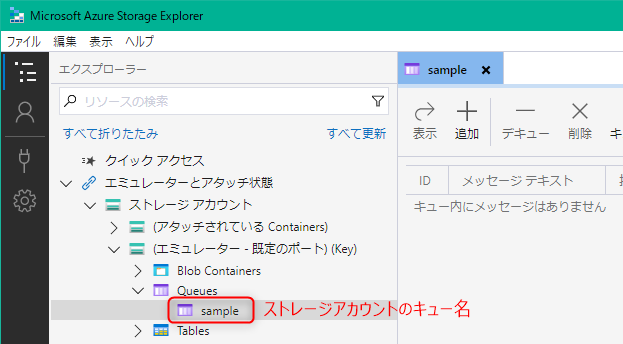
| queueName | ストレージ アカウントのキュー名を入力する。必須 |
| connection | ストレージ アカウントの接続文字列を入力する。必須 |
// 記述例
public void queueTrigger(
    @QueueTrigger(name = "message", queueName = "sample", connection = "AzureWebJobsStorage") String message,
    final ExecutionContext context) {
}
ローカルでの動作確認
Queue Storage Triggerの起動には、Azure Blob Storageが必要となる。
今回は、ローカル環境で使用できるAzure Blob StorageのエミュレータであるAzuriteを使用する例を示す。
Azuriteの導入
コマンドプロンプトで以下のコマンドを実行する。
npm install -g azurite
インストール完了後にc:\\azuriteディレクトリを作成し、以下のコマンドでAzuriteを起動する
azurite --silent --location c:\\azurite --debug c:\\azurite\\debug.log
起動すると以下のようなログが表示される
C:>azurite --silent --location c:\\azurite --debug c:\\azurite\\debug.log
Azurite Blob service is starting at http://127.0.0.1:10000
Azurite Blob service is successfully listening at http://127.0.0.1:10000
Azurite Queue service is starting at http://127.0.0.1:10001
Azurite Queue service is successfully listening at http://127.0.0.1:10001
Azurite Table service is starting at http://127.0.0.1:10002
Azurite Table service is successfully listening at http://127.0.0.1:10002
起動中のAzuriteはCtrl + cで停止できる。
ファンクションの設定
ファンクションプロジェクトのlocal.settings.jsonを開き、AzureWebJobsStorageにUseDevelopmentStorage=trueと設定する。
{
  "IsEncrypted": false,
  "Values": {
    "AzureWebJobsStorage": "UseDevelopmentStorage=true",
    "FUNCTIONS_WORKER_RUNTIME": "java",
    "MAIN_CLASS":"jp.co.sample.functions.Application"
  }
}
ファンクションの処理の中でAzureBlobStorageに対して処理を行っている場合、以下の接続設定を利用する。 以下はAzuriteの接続設定である。
| 設定 | 値 |
|---|---|
| アカウントキー | Eby8vdM02xNOcqFlqUwJPLlmEtlCDXJ1OUzFT50uSRZ6IFsuFq2UVErCz4I6tq/K1SZFPTOtr/KBHBeksoGMGw== |
| アカウント名 | devstoreaccount1 |
| Blobエンドポイント | http://127.0.0.1:10000/devstoreaccount1 |
Azurite起動中はMicrosoft Azure Storage Explorerの「ローカルで接続済み」->「ストレージアカウント」->「エミュレーター」で起動中のエミュレータの操作をすることも可能。
ファンクション動作確認
ファンクションの作成完了後にプロジェクトをビルドする。
gradlew azureFunctionsPackage
以下のコマンドでAzuriteを起動する
azurite --silent --location c:\azurite --debug c:\azurite\debug.log
ファンクションを起動する。
gradlew azureFunctionsRun
起動に成功すると以下のようにファンクションの一覧が表示される。
> Task :azureFunctionsRun
Azure Function App's staging directory found at: C:\workspace\functions\build\azure-functions\java-template-func

Azure Functions Core Tools
Core Tools Version:       4.0.5198 Commit hash: N/A  (64-bit)
Function Runtime Version: 4.21.1.20667

Functions:

        queue: queueTrigger
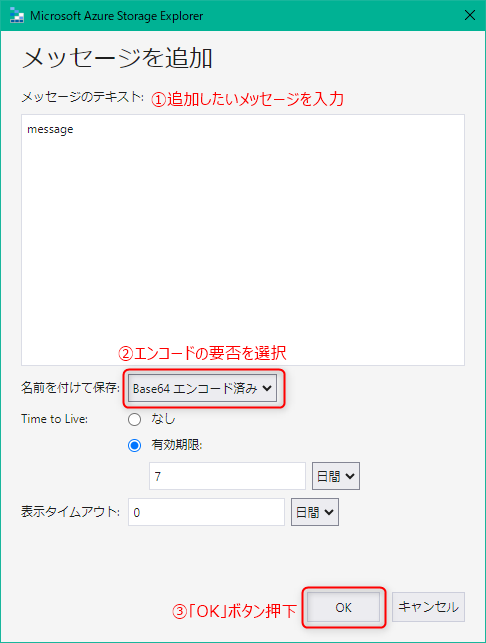
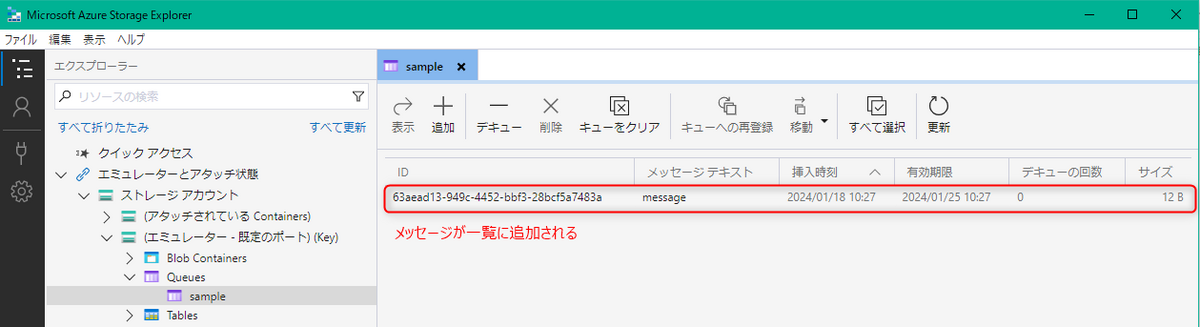
Azure Storage Explorerでキューにメッセージを追加することで、ファンクションが実行される。

任意のタイミングでファンクションを実行する
任意のタイミングでファンクションを実行したい場合は以下のURLに対してPOSTリクエストを送信する。
http://localhost:7071/admin/functions/{ファンクション名}
その際、POSTデータには以下を張り付ける
{
  "input" : "<QueueStorageTriggerに渡したいメッセージ>"
}

